> For the complete documentation index, see [llms.txt](https://docs.supademo.com/llms.txt). Markdown versions of documentation pages are available by appending `.md` to page URLs; this page is available as [Markdown](https://docs.supademo.com/customize/manage-content-and-layout/add-replace-duplicate-or-delete-steps.md).
# Add, Replace, Duplicate or Delete Steps
Supademo gives you flexible ways to manage your demos. You can add steps, replace or duplicate existing ones, and remove those you don’t need — all while keeping your demo polished and accurate.
## Add Steps
You can add new steps to a Supademo in several ways:
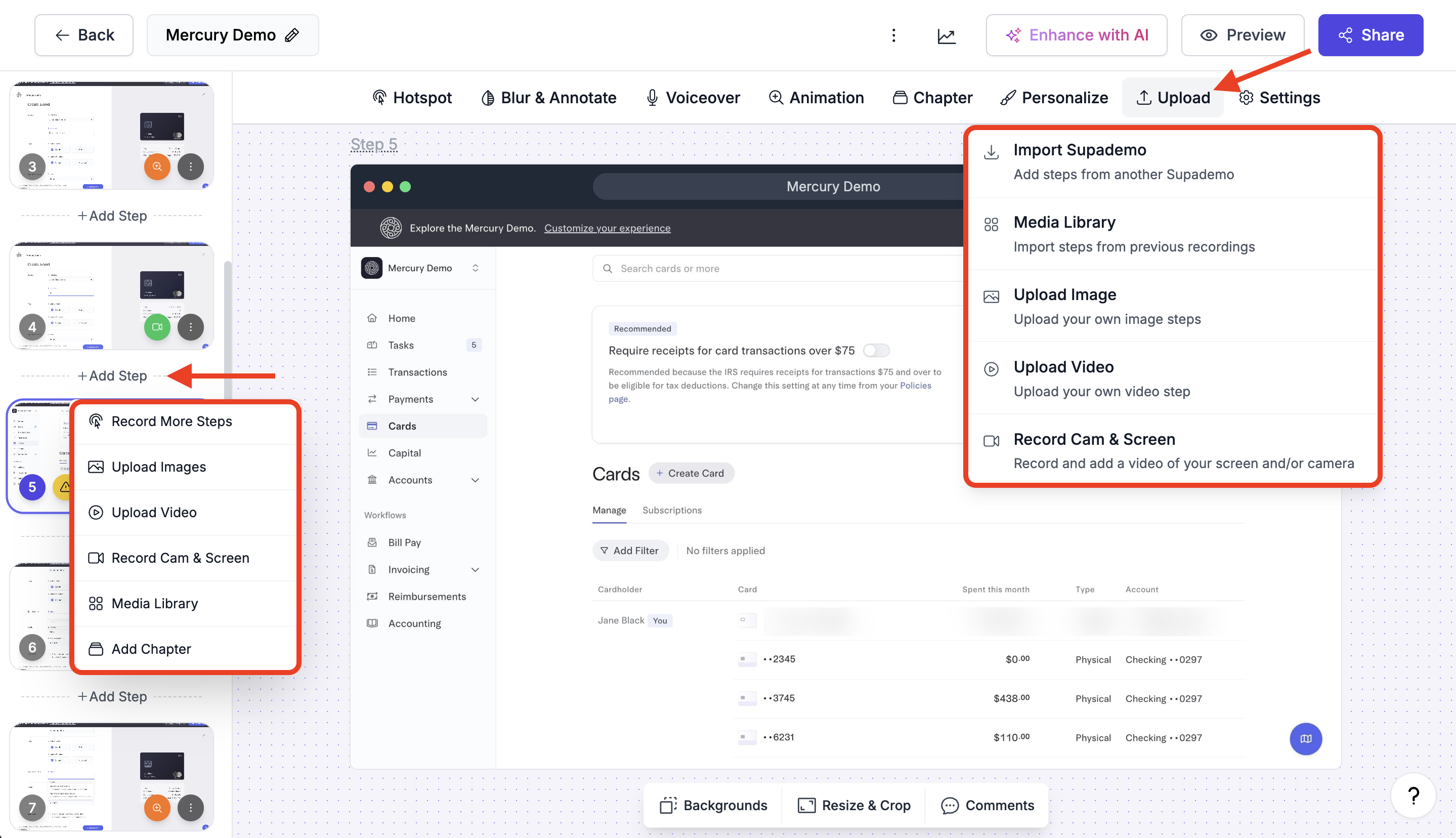
❶ Record More Steps
* Navigate to the slide position where you’d like to insert steps and click **+ Add Step**
* Click **Record More Steps**, specify the URL you want to record, and click **Start**.
* Record as normal, then click **Stop Recording** when finished.
* Your steps will be added directly into your existing Supademo.
❷ Upload Images or Videos
* Navigate to the slide position where you’d like to insert steps and click **+ Add Step,** or click **Upload** from the main toolbar.
* Select **Upload Images / Upload Video** from the dropdown menu.
* From the pop-up window, choose your image(s) and click **Open.**
{% hint style="info" %}
**Note**: The aspect ratio of the first step in your Supademo is applied to all subsequent steps.
{% endhint %}
❸ Record Cam & Screen
* Navigate to the slide position where you’d like to insert steps and click **+ Add Step,** or click **Upload** from the main toolbar.
* Select **Record Cam & Screen** from the dropdown menu.
* Choose your desired layout and click **Record** after allowing permissions.
* Hit **Stop** and **Done** to complete the recording.
* Supademo will automatically process your recording and add it to the demo.
**👉 Learn more about creating with screen and webcam** [**here**](/create/by-method/record-screen-and-camera.md)**.**
❹ Media Library
With the media libaray, you ca quickly add screenshots or videos from your **last 50 captures.**
* Navigate to the slide position where you’d like to insert steps and click **+ Add Step,** or click **Upload** from the main toolbar.
* Select **Media Library** from the dropdown menu.
* From the **Library** add any step by clicking on the plus icon ("+") in the image tile.
* Supademo will automatically load the step into your demo.
❺ Add Chapter
Chapters help you provide context, [capture leads](https://docs.supademo.com/editing/chapters/email-lead-capture), [gate content using passwords](/customize/chapters/password-protect.md), add [conditional branching](/customize/chapters/conditional-branching.md), and [drive action](/customize/chapters/embed-forms-surveys-calendars.md) within your Supademos. They can also be personalized using [dynamic variables](/customize/personalize/variables-and-tokens.md).
**👉 Learn more about adding chapters** [**here**](/customize/chapters.md)**.** ❻ Import Supademo
* Select **Upload** from the main toolbar.
* Choose **Import Supademo**
* From the popup window search for the new Supademo you want to import and click the **Import** button next to it.
* The imported Supademo steps will be added to the end of your current Supademo.
❼ Copy Steps from Another Supademo
* Open the Supademo that contains the steps you want to copy.
* Select the step(s) using the checkbox.
* Press **Command/Control + C** to copy.
* Open the Supademo where you want to paste the steps.
* Press **Command/Control + V** to paste.
* The copied slides will appear at the end of the demo.
***
## Replace Existing Steps
You can quickly replace the background image or screenshot for any step in a guided screenshot demo, without losing its hotspots, text, or analytics. This is useful when your product UI changes but you want to keep the step’s interactions intact.
When you replace an image, all embeds and shared links automatically update.
### How to Replace a Step Image
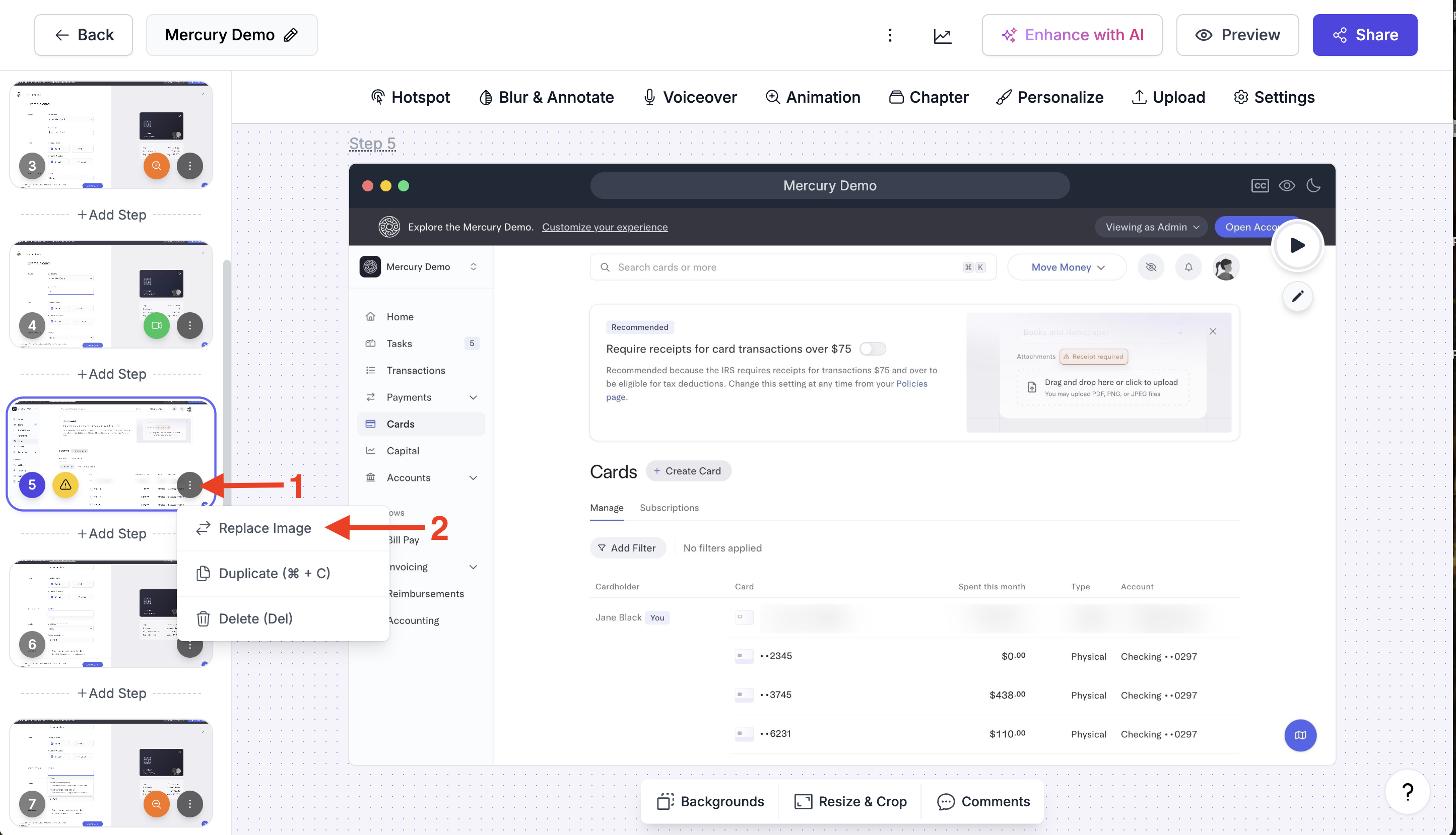
1. Hover over the step in the left-hand panel.
2. Click the **three-dot menu** (⋮).
3. Select **Replace Image**.
4. Upload or select the new screenshot.
{% hint style="success" %}
**Tip:** Use **Replace Image** when updating a product UI so you don’t need to recreate hotspots or reset analytics.
{% endhint %}
***
## Duplicate Steps
You can quickly duplicate an existing step to save time when building or editing your demo.
### How to Duplicate a Step
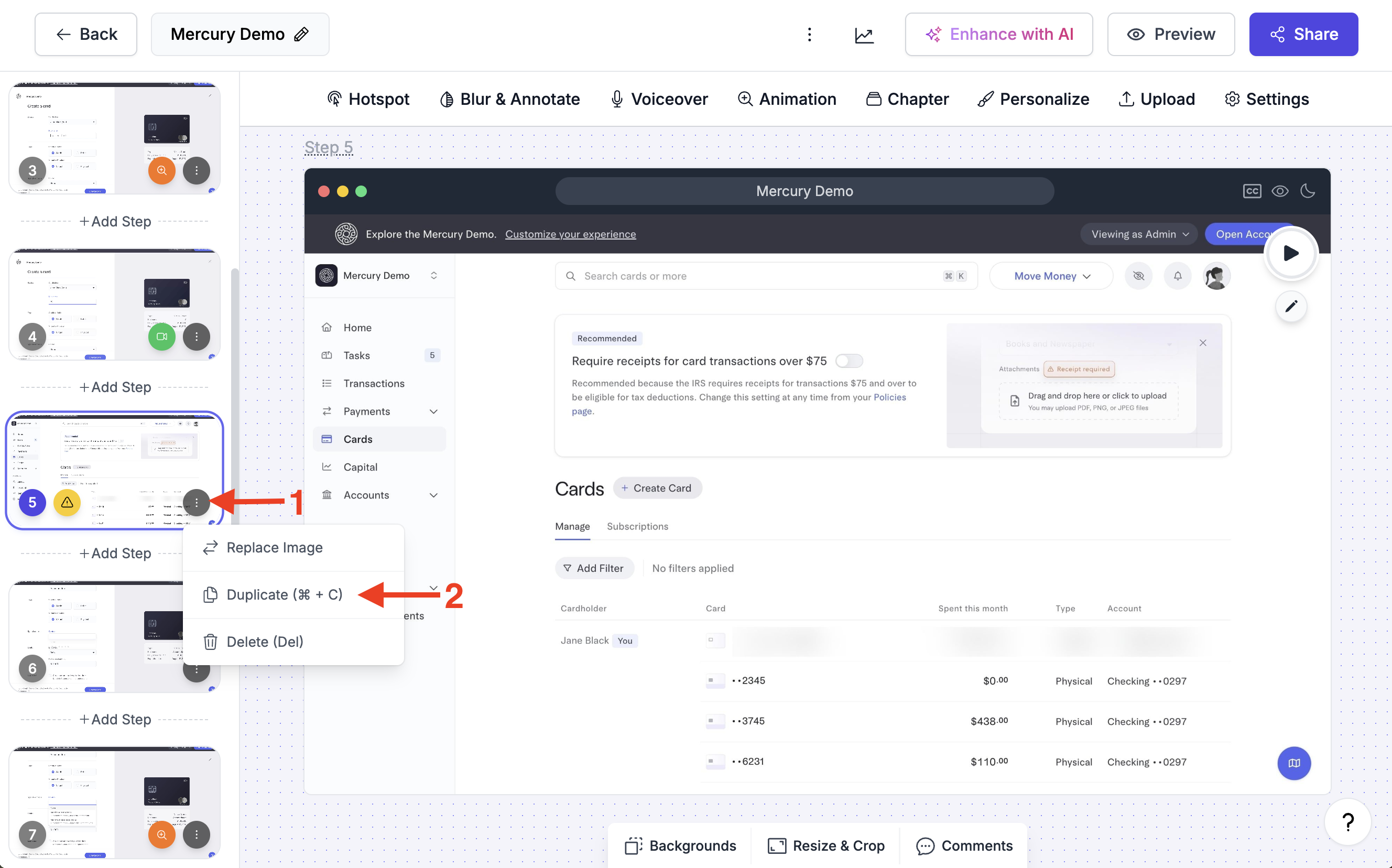
1. Hover over the step in the left-hand panel.
2. Click the **three-dot menu** (⋮).
3. Select **Duplicate (⌘ + C)**.
A copy of the step will appear immediately after the original.
{% hint style="success" %}
**Tip:** Use duplication when you want to reuse hotspots or annotations without recreating them from scratch.
{% endhint %}
***
## Delete Steps in a Supademo
You can delete steps you no longer need, either one at a time or in bulk.
### Delete a Single Step
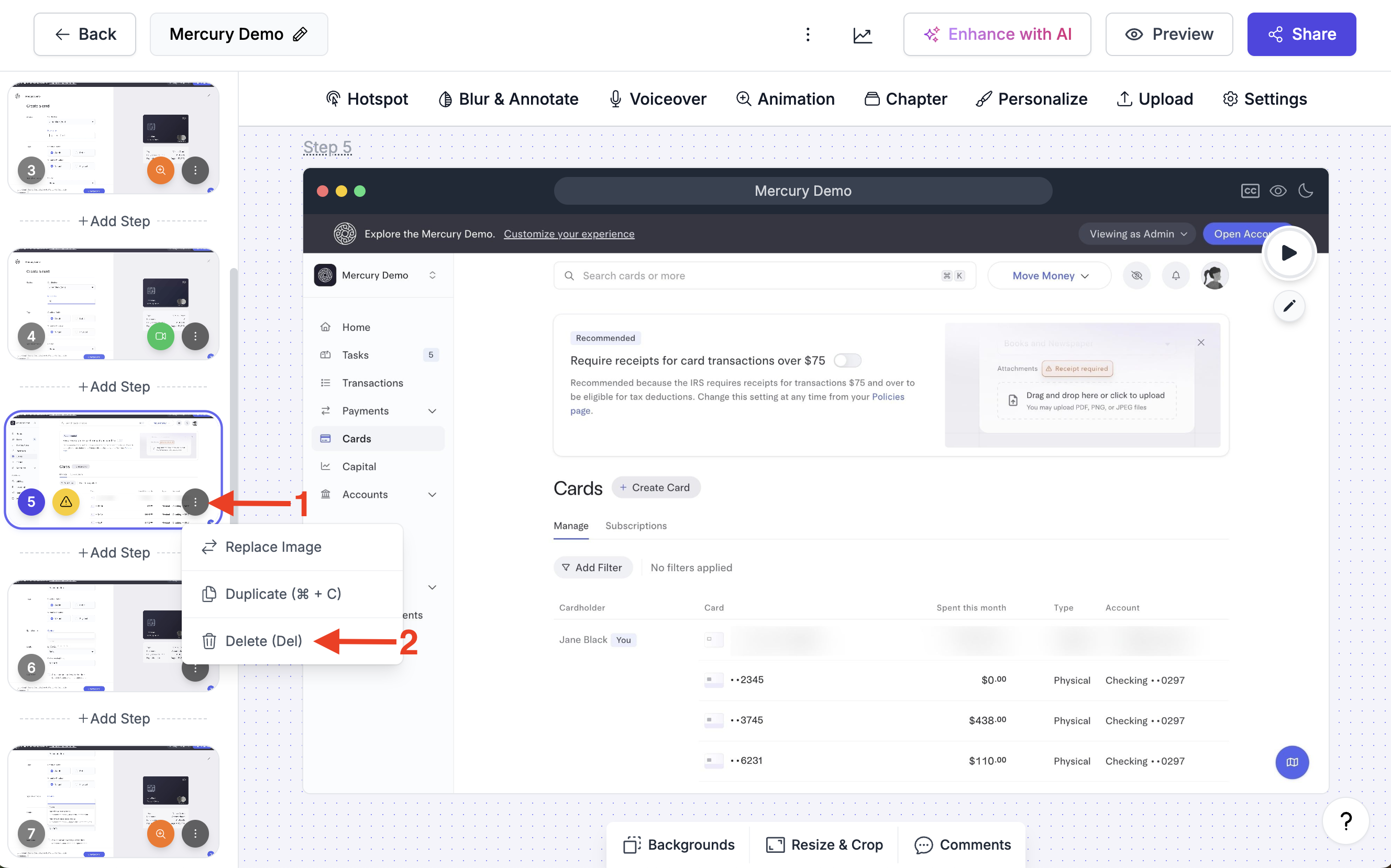
1. Hover over the step in the left-hand panel.
2. Click the **three-dot menu** (⋮).
3. Select **Delete (Del)**.
### Delete Multiple Steps
1. Hold **Shift** or **Command/Control** to select multiple steps in the left-hand panel.
2. Click the **three-dot menu** (⋮).
3. Select **Delete (Del)**.
{% hint style="success" %}
**Tip:** Deletions are permanent. If you’re unsure, duplicate the step first so you have a backup copy. You can temporary revert deletions by using keyboard commands (**ctrl**/**cmd+z)**
{% endhint %}
### Move Multiple Steps
1. Hold **Shift** or **Command/Control** to select multiple steps in the left-hand panel or use the checkboxes next to each slide.
2. Drag the selected slides to the appropriate position in the sidebar.
{% @supademo/embed demoId="cmfx3erqq00ghy80ic178x9pc" url="" %}